
A workstation is where an office worker spends most of the day, so small mismatches add up: a chair that is too high, a desk that is too low, knees bumping a drawer unit, a neighbour's chair backing into yours. Good workstation design fits the person first and then repeats that fit across the floor.
This guide covers the workstation itself. For light, temperature, walkways, privacy and shared seating across the whole office, see our guide to ergonomics in office interior design.
Why the workstation matters
Poor posture at a desk strains the neck, shoulders, back and wrists. The aim is a relaxed, neutral position: feet supported, thighs roughly level, back supported, elbows close to the body and wrists straight. Because people differ in height and build, the furniture has to be adjustable or the layout has to allow it to be changed.
| Part | What to get right | Typical problem when wrong |
|---|---|---|
| Chair | Height, back support, armrests | Lower back ache, dangling feet |
| Desk or table | Height, edge, keyboard, mouse and monitor position | Raised shoulders, wrist strain |
| Legroom | Clear space for knees, thighs and feet | Twisted posture, sitting side-on |
| Spacing | Gap to neighbours and walkways | Bumps, noise, crowded feeling |
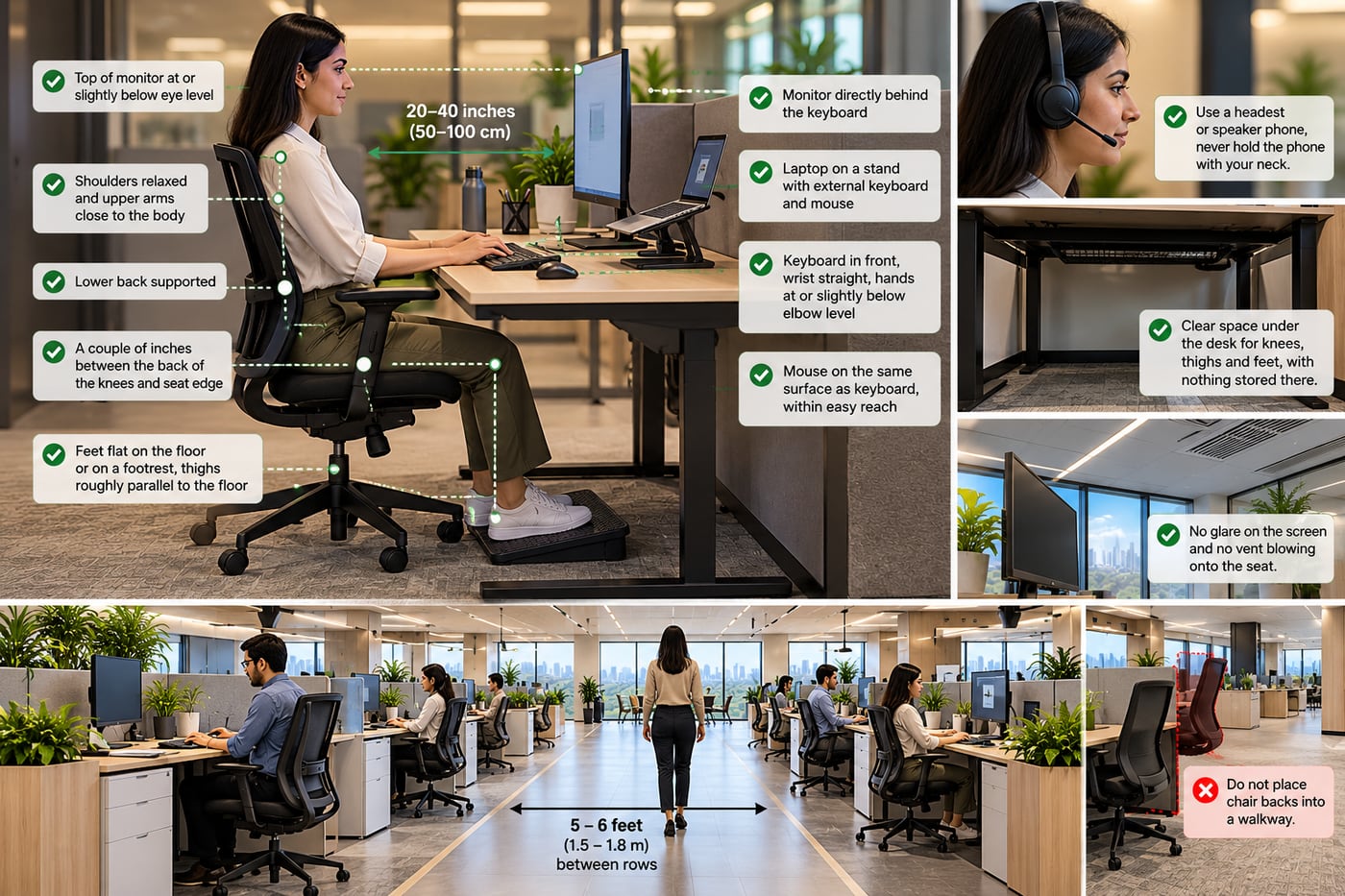
Here is what a well-set workstation looks like in practice. The picture below pulls together the points this guide covers: seated posture, the position of the desk, screen, keyboard and phone, the clear space under the desk, and the gap between rows. The sections that follow take each in turn, starting with the chair.
The chair
The chair does most of the work. Choose one that adjusts to the person using it, not the other way round.
- Seat height: set it so the feet rest flat on the floor, or on a footrest, with the thighs roughly parallel to the floor.
- Seat depth: leave about a couple of inches between the back of the knees and the front edge of the seat, so circulation is not pinched.
- Back support: the backrest should follow the natural curve of the spine, with support for the lower back. Adjustable lumbar support, or a small cushion, helps where the chair does not have it.
- Armrests: they should support the forearms lightly while the shoulders stay relaxed. Armrests that are too high push the shoulders up, and ones that are too wide pull the elbows away from the body. Choose adjustable or removable arms.
- Base and swivel: a stable five-point base with a smooth swivel lets people reach without twisting. Castors should suit the floor, for example hard-floor castors on tile and softer ones on timber.
- Footrest: provide one for people whose feet do not reach the floor once the chair is at the right height for the desk. A small stool or a stack of sturdy books is a temporary fix, not a plan.
Design note: In shared or hot-desk areas, pick chairs with simple, clearly labelled controls. A chair that nobody can work out how to adjust is, in practice, a fixed chair.
The desk or table
The desk height should let the elbows rest at about a right angle with the keyboard at elbow height, so the hands can rest on the work surface and the wrists stay straight.
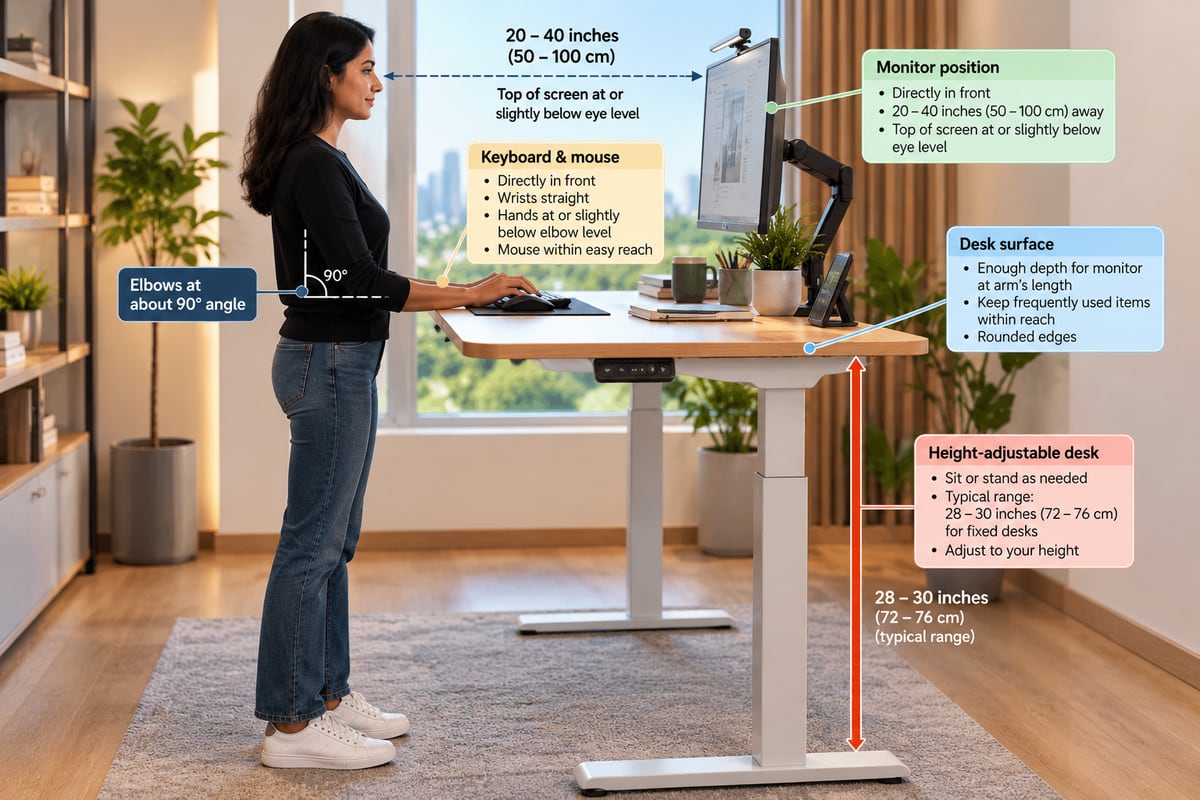
- Height: fixed desks are commonly about 28 to 30 inches (72 to 76 cm) high, which suits an average-height person but not everyone. Where possible, choose height-adjustable desks, or sit-stand desks so people can alternate between sitting and standing.
- If the desk is too low and cannot be adjusted, raise it on sturdy blocks. If it is too high, raise the chair and add a footrest.
- Keyboard: put it directly in front of the person so the wrists and forearms are in line and the shoulders are relaxed. Keep the wrists straight, the upper arms close to the body and the hands at or slightly below elbow level.
- Mouse or pointer: keep it within easy reach, on the same surface as the keyboard. Where the software allows, set the sensitivity so a light touch is enough.
- Monitor: place it straight in front, directly behind the keyboard, about an arm's length away. Keep it no closer than 20 inches (about 50 cm) and no further than 40 inches (about 100 cm), with the top of the screen at or slightly below eye level. People who wear bifocals usually need the screen another 1 to 2 inches (2 to 5 cm) lower. A monitor arm makes this easy to fine-tune.
- Laptops: a laptop on its own gives a low screen and a cramped keyboard. Where one is used at a desk, add an external keyboard and mouse and a laptop stand so the setup works like a desktop.
- Edges: choose desks with rounded edges. A hard edge pressing on the wrists for long periods causes contact stress, so if one cannot be avoided, pad it or use a wrist rest.
- Surface depth: allow enough depth to hold the monitor at arm's length with room for the keyboard in front of it. Very shallow desks push screens too close.
- Frequently used items within reach: keep the phone, stapler and printed material close to the body to avoid reaching. For anything that cannot be reached comfortably while seated, it is better to stand up and get it.
- Telephone: for people on calls often, or who type or write while talking, use speaker or a headset. Never cradle a phone between head and neck.
Legroom under the desk
Under the desk there needs to be clear space for the knees, thighs and feet. When the space is tight, people sit sideways or perch forward, which undoes everything the chair offers.
| Clear space under the desk | Typical planning figure |
|---|---|
| Width for knees and legs | At least 20 inches (50 cm), more where possible |
| Depth at knee level | About 24 inches (60 cm) or more |
| Height | Enough for the thighs to clear the underside of the desk, including any drawer or keyboard tray |
| Floor area for feet | Free of cables, boxes and drawer units |
These are typical planning figures, not standards. Check them against your furniture supplier's specifications and the people who will use the desks.
- Do not store things under the desk. Bags, boxes and spare equipment take up exactly the space the legs need. Give people a locker or pedestal elsewhere.
- Watch drawer units and modesty panels. A fixed pedestal on the wrong side, or a panel that runs too low, is the most common cause of cramped knees.
- Manage cables. Use trays or ducts so wires do not tangle around feet or chair bases.
- Plan for sit-stand. Check there is still legroom with the desk fully lowered, and that the frame feet are not in the way.
Distance between workstations
Space around a workstation affects comfort as much as the furniture. There should be room to pull the chair back, to stand, and to let a colleague pass without either person having to move.
| Relationship | Common planning distance | Why |
|---|---|---|
| Between rows of workstations | 5 to 6 feet (1.5 to 1.8 m) | Chair pull-out plus a person walking behind |
| Main corridor beside workstations | 6 feet (1.8 m) or more | Two people can pass comfortably |
| Width per person along a bench desk | About 4 to 5 feet (1.2 to 1.5 m) | Elbow room and space for a monitor and papers |
| Workstation to shared equipment | Keep queues out of the walkway | People stand and wait at printers |
These are typical planning figures. Always check the applicable building and fire regulations for your premises.
- Plan the gap for the chair, not the desk. The distance should be measured with the chair in its normal working position and also pulled back.
- Do not seat people with their back to a busy walkway. It is uncomfortable, and screens facing the walkway reduce privacy.
- Use low screens or planters between facing desks if people need some separation, while keeping sight lines open for teamwork.
- Leave space for growth. A layout that works only at maximum density has no slack when the team changes.
Where to place workstations
- Screens at right angles to windows, so daylight lands beside the monitor and not on it or behind it.
- Away from direct air-conditioning vents, so cold air does not fall onto people sitting at their desks.
- Away from noisy areas such as the pantry, printers and entrances, or with acoustic screens where that is not possible.
- Near, but not in, the main route to meeting rooms and washrooms, so there is little cross traffic behind seated people.
The office-wide factors behind these choices are covered in our office ergonomics guide.
Movement and breaks
Even a well-set workstation does not make it healthy to sit in one position for hours. People should get up and walk around as often as they can, and at least once an hour, and do some work standing where possible. While seated, stretching the hands, fingers and arms from time to time and shifting position eases strain. Design helps by placing printers, water and meeting rooms a short walk from desks, and by offering sit-stand desks and a few standing perches.
A quick workstation checklist
- Feet flat on the floor or on a footrest, thighs roughly parallel to the floor.
- A couple of inches between the back of the knees and the seat edge.
- Lower back supported; shoulders relaxed.
- Keyboard in front, wrists straight, upper arms close to the body, hands at or slightly below elbow level.
- Mouse on the same surface as the keyboard, within easy reach.
- Monitor directly behind the keyboard, 20 to 40 inches (50 to 100 cm) away, top at or slightly below eye level.
- Laptop users have an external keyboard, mouse and a stand.
- Phone on speaker or a headset, never held with the neck.
- Clear space under the desk for knees, thighs and feet, with nothing stored there.
- 5 to 6 feet between rows, and no chair backs into a walkway.
- No glare on the screen, and no vent blowing onto the seat.
How we approach it at Tryakshaay
We plan workstations as part of the whole floor. We start with the number of people and the way they work, choose desks and chairs that suit a range of body sizes, then set the spacing and orientation so each seat is comfortable and the floor still flows. If you are planning a new office or refreshing an existing one, we are happy to review your layout and suggest practical changes.
Dimensions and spacing are general planning guidelines, not strict rules. The right values depend on your furniture, building, regulations and team.